Thursday, January 24, 2019

Certificates Rotation on a Dynamics 365 for Finance & Operations On-premise Environment

Hi Guys.

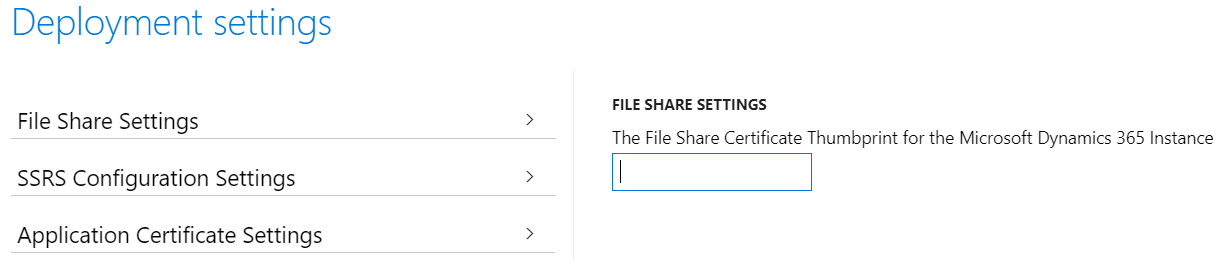
Today I noticed that also on a LBD Environment is possible to handle the Certificates rotation!

Comparing with the Cloud, in a LBD implementation is a manual task, but now is possible to do it without modify the Configtemplate file, delete the Environment, etc.

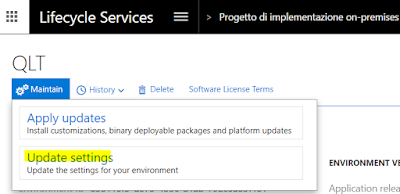
Simply go through LCS Environment Full Details, Maintain, Update Settings


Enjoy!

Tuesday, January 22, 2019

App Fabric Certificates Details - Dynamics 365 for Finance & Operations LBD

Hi,
as per my experiences, the Microsoft documentation is quite lack about the details useful in order to create the App Fabric Certificates.
In my implementations, about the LBD environments I use Certificates generated from the Internal Customer CA (ADCS).

Only about the AOS URL is recommended to purchase a Certificated from a certificate authority (CA) such as GoDaddy, DigiCert, etc. in order to avoid certificates warning during the navigation.

At the link below you can find an Excel file with all Certificates details.

Hope it help you!
Till soon!

Thursday, December 27, 2018

Trace Parser doesn't work - Dynamics 365 for Finance & Operations

Hi All and Happy Christmas!!

Below, I'll share an issue that wasted my time during an Performance investigation.
I have to say also thanks to Microsoft Technical support for helping me.

Some ETL files opened with Trace Parser on a onebox VM, didn't show up any methods and any queries. Something like that:


Cause: The ETW Providers  “Microsoft-AX-XPPExecutionTraces” and “Microsoft-Dynamics-AX-ExecutionTraces” aren't installed in the VM!

Microsoft-Dynamics-AX-XppExecutionTraces : Used to capture X++ methods events.
Microsoft-Dynamics-AX-ExecutionTraces : Used to capture SQL events.


Resolution : In that case you can install the missing providers with the following steps:

Find the location of the manifest files. If you are using a onebox VM they are in C:\AOSService\webroot\Monitoring

Open a Powershell as Administrator and run the following commands to install the 2 missing event providers:

$resourcefiledir = "C:\AOSService\webroot"
$inputmanfile = "C:\AOSService\webroot\Monitoring\DynamicsAXExecutionTraces.man"
$outputmanfile = "C:\AOSService\webroot\Monitoring\DynamicsAXExecutionTraces_copy.man"
$temp = Get-Content $inputmanfile
$temp = $temp -replace "%APPROOT%",$resourcefiledir
$temp | out-file $outputmanfile
wevtutil im $outputmanfile
$inputmanfile = "C:\AOSService\webroot\Monitoring\DynamicsAXXppExecutionTraces.man"
$outputmanfile = "C:\AOSService\webroot\Monitoring\DynamicsAXXppExecutionTraces_copy.man"
$temp = Get-Content $inputmanfile
$temp = $temp -replace "%APPROOT%",$resourcefiledir
$temp | out-file $outputmanfile
wevtutil im $outputmanfile

Close and open Trace Parser again and verify the providers are visible in the list.

Another way is to:

Copy c:\Monitoring folder from a 7.2 working VM

Run MonitoringInstall.cmd from Command Prompt running as Administrator in this folder

I guess with the new VM version this issue is gone!

Enjoy!

Thursday, December 6, 2018

Upcoming Dynamics 365 Events

Greetings,

around the Microsoft Dynamics 365 ecosystem, there a lot of Events organized in the world that sometime is not easy to catch out!

Thank you to @Andrè and @Vilmos that helped me to discover them!
Therefore, below a list of upcoming events:

  1. Microsoft IGNITE Tour
    • Learn new ways to code, optimize your cloud infrastructure, and modernize your organization with deep technical training
  2. AXUG Summit EMEA - 27-29 March 2019 | RAI Amsterdam
  3. Dynamics 365 Saturdays
    • Dynamics 365 Saturday is a free Technical & Strategy Event Organised by the Microsoft Dynamics Community MVP’s For CRM and ERP professionals, technical consultants & developers. Learn & share new skills whilst promoting best practices, helping organisations overcome the challenges of implementing a successful digital transformation strategy with Microsoft Dynamics 365.
  4. Microsoft Business Applications Summit - June 10-11, 2019 Georgia World Congress Center | Atlanta, GA
    • All things Dynamics 365, Power BI, Excel, PowerApps, and Microsoft Flow under one roof. Meet the engineers behind your favorite tools, hang out with like-minded explorers, and get hands-on with immersive breakout sessions and workshops.
  5. Business Applications Partner Events
  6. Microsoft Dynamics 365 Community Events
  7. AXUG Local Chapters
    • Connecting great ideas and great people through education and networking in a local setting.
  8. D365 Global Calendar
Stay Tuned!


Sunday, November 25, 2018

How to handle a new TAG in the ISO20022 bank statements - Dynamics 365 for Finance & Operations

Hi All,

In Microsoft Dynamics 365 for Finance and Operations, against the Advanced bank reconciliation Module, we can import electronic bank statements and automatically reconcile them.

The article below will explain the set up processes for reconciliation.

Advanced bank reconciliation setup process

Days ago I spent some time in order to handle a new XML Tag.

The link below explain the basic setup. The Bank Statement import varies, depending on the format of your electronic bank statement. F&O supports three bank statement formats out of the box: ISO20022, MT940, and BAI2.
Set up the advanced bank reconciliation import process

So, for instance if you have to handle a new Column/Tag into the Bank Statement Lines table (BankStmtISOReportEntry),  you have to:

  1. Add the new field to the BankStmtISOReportEntry table
  2. Add the same field to the BankStatementLineStaging table and BankStatementLineEntity Data Entity
  3. Edit the SampleBankCompositeEntity.xml file and Add the new Tag according the new Field added to the Step 1 and related the specific Section/Table
  4. Edit the BankReconiliation-to-Composite.xslt trasformation file and add the new Tag. In my case I searched for another "similar" tag for the same Entity and I replicate all found entries and change the name
  5. Edit the ISO20022XML-to-Reconciliation.xslt trasformation file, found the  entry and Add the new Tag Section. Also in that case I have copied another "similar" section and change the name
  6. Go through the Entity and regenerate the Mapping
  7. Lastly, in F&O recreate the Entity in the Data Management Processing Group and follow the steps mentioned in the Setup link above
  8. Test the file Import
Take a look also to the link below in order to, for instance, Debug an XSLT file.

That's it!

Sunday, September 23, 2018

How to suspend RecId Sequence - Dynamics 365 for Finance & Operations

Hi,

as you know in D365FO now the sequences are handled by SQL and not anymore from the SYSTEMSEQUENCES table.

From particular scenarios could be necessary to suspend the Recid assignement.
In order to do that, issue the following command:

appl.sysRecIdSequence().suspendRecIds(tableNum(TABLENAME));

Tale a look also to the standard AccountingDistributionProcessor class, SuspenAccDistRecidAssignment method.

Till soon!

Sunday, September 16, 2018

How to avoid Retail Module configuration reset - Dynamics 365 for Finance & Operations LBD

Hi mates,

if in your LBD implementation the Retail Module disappear after a Deployment, here how to avoid it.

After a chat with Microsoft, to prevent DB sync from resetting the config keys (Retail in my case), issue the following command against the AxDB Database from sql server management studio:

INSERT INTO SQLSYSTEMVARIABLES (PARM, VALUE, IPARM, IVALUE) VALUES ('FirstSyncSuccess', 1, 20, NULL)

It seems that in the next months a new KB will be release in order to fix that.

In the next Deployments you can sleep peacefully that the Retail Module will be there again!

Till soon!